
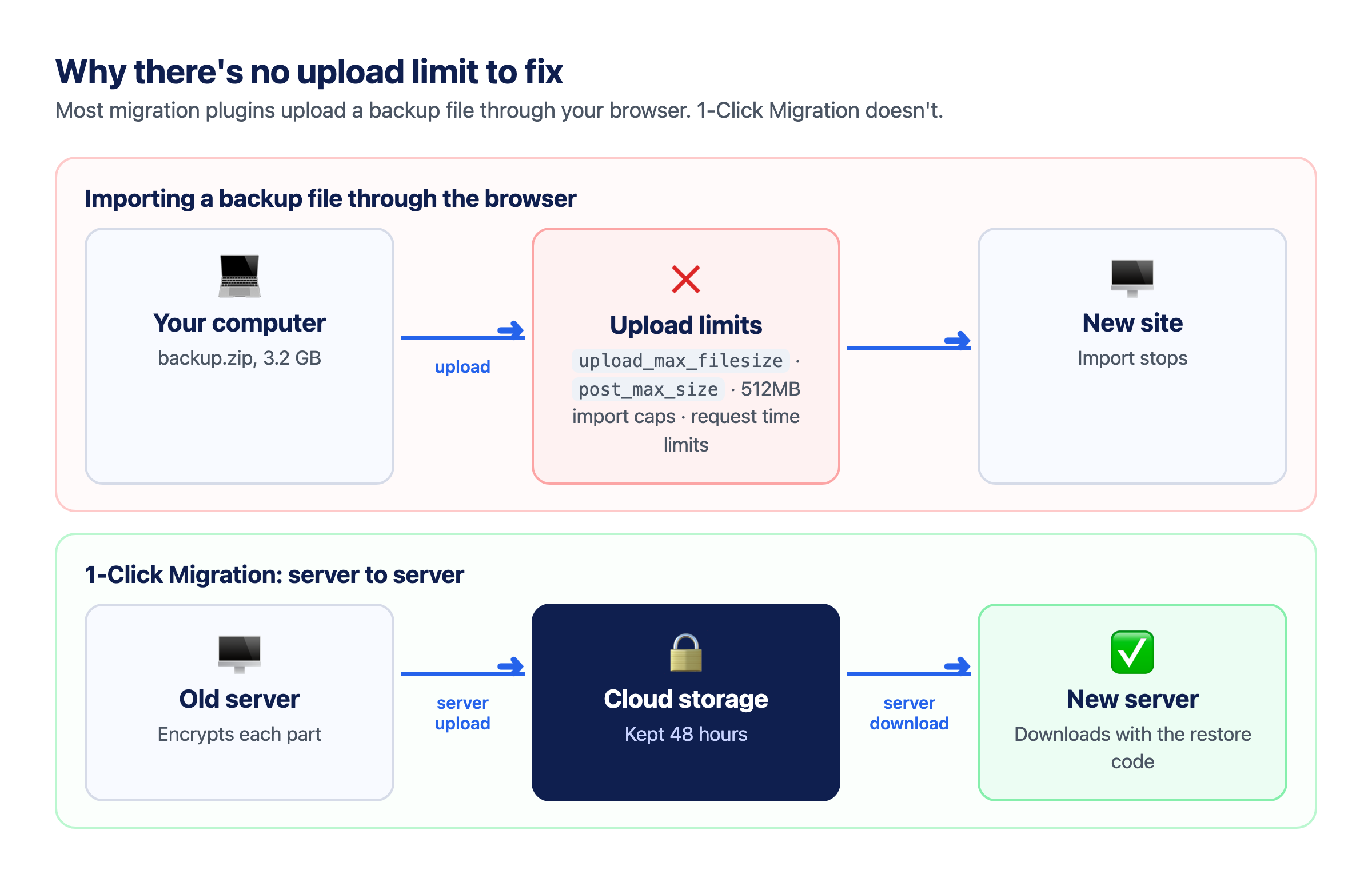
If a migration plugin stops at “maximum upload file size: 512MB” or a similar cap, the limit comes from uploading the backup, not from your site. A backup file imported through the browser is limited by PHP’s upload_max_filesize and post_max_size, by how long the host lets a request run, and sometimes by a cap the plugin sets itself.
The usual fixes
- Raise
upload_max_filesizeandpost_max_sizein php.ini, .htaccess or the host’s control panel. Many shared hosts don’t allow it, or cap it lower than your backup. - Upload the backup file by FTP into the plugin’s import folder.
- Buy an extension that lifts the import limit.
- Split the site and import it in pieces.
All of these work around the upload. 1-Click Migration doesn’t have one.
Migrating without an upload
With 1-Click Migration you never upload a backup file through your browser. The old site’s server encrypts each part of the backup and sends it to cloud storage. The new site’s server downloads it when you paste the restore code. So there’s no upload limit to bypass, no file size limit to increase in php.ini, no 512MB import limit to fix and no 4GB zip cap.
How to move a large site
The steps are the same as for any site:
- Install 1-Click Migration on the site you’re moving from.
- Deactivate every other plugin. You’ll turn them back on after the restore.
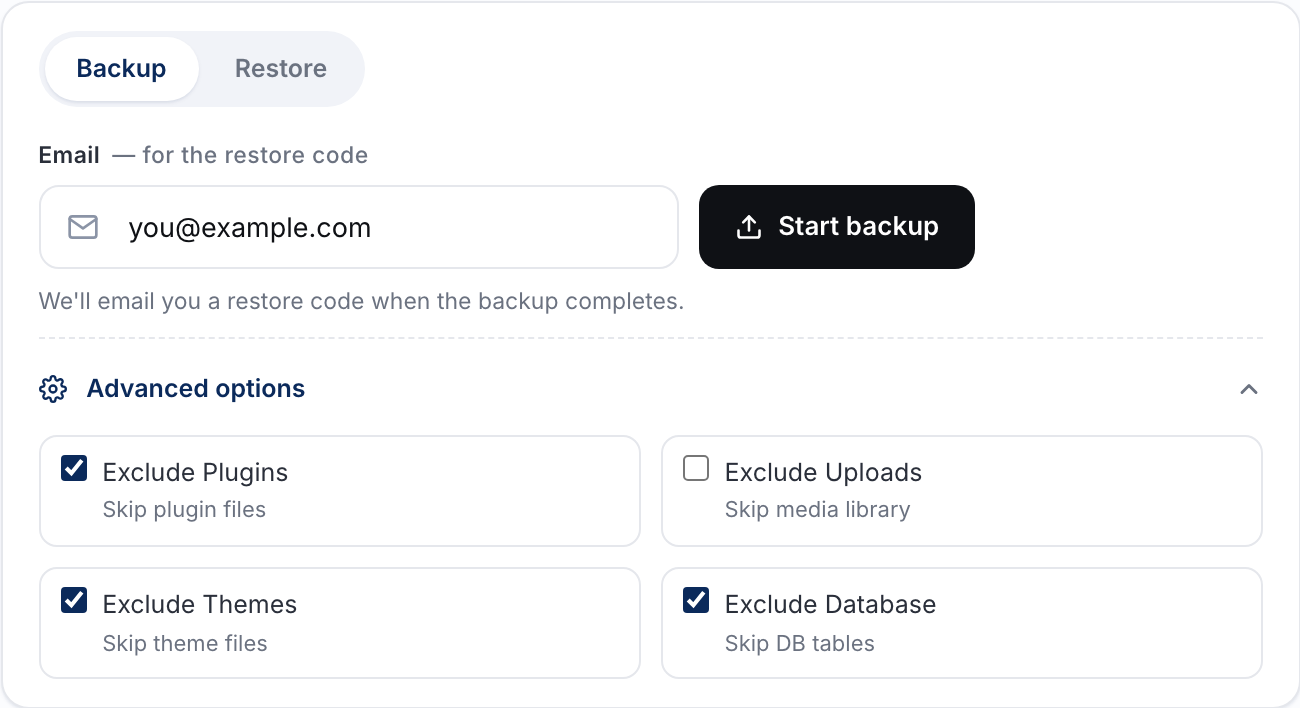
- Go to Tools → One Click Migration, enter your email and click Start backup. Most backups finish in 10–30 minutes, and the site stays online while it runs.
- Keep the email with your 8-character restore code. It’s the only way to restore the backup, and it works for 48 hours.
Then restore on the new site:
- Install WordPress and 1-Click Migration on the new site, and delete any other plugins the host pre-installed.
- Go to Tools → One Click Migration, paste the restore code and click Check backup & restore.
- Review any extra site addresses the check found, such as an old domain or a CDN, choose which ones to rewrite, then start the restore. The site shows a maintenance page while it runs.
- Log in with the usernames and passwords from the original site, then reactivate your plugins.
What can still limit a large site
- Disk space on the new host. It needs room for the downloaded parts and the unpacked site. Free space is checked before files are unpacked, so you find out before anything changes.
- PHP memory for very large databases. The source host may need a higher
memory_limit. See WordPress migration plugin memory limit. - Time limits. Backups and restores run in short steps and pick up where they left off, so strict PHP time limits don’t stop them.
If a big site fails in one go, click Stop & Reset and use Advanced options to move the database, plugins, themes and uploads one part at a time, with the database last. Each partial backup gets its own restore code.
Questions
Is there a maximum site size?
There’s no fixed cap. The practical limits are disk space on each host and PHP memory for very large databases.
Do I need FTP or cPanel?
No. The migration itself only needs a WordPress login on each site.
Related guides
- Migrate WordPress to a new host
- Change your WordPress domain name
- Migrate a WooCommerce store
- Move WordPress from localhost or staging to live
- How to migrate a WordPress site: step-by-step backup & restore
Stuck? Ask on the 1-Click Migration support forum. Include your site’s domain, but never your restore code: anyone who has the code can restore your backup.
1-Click Migration is free, with no account or license key. Get it from WordPress.org.