
Moving WordPress to a new host usually means downloading files over FTP, exporting the database in phpMyAdmin, uploading both again and fixing every URL. 1-Click Migration replaces those steps with one backup on the old host and an 8-character restore code on the new one. The migration itself needs no FTP, cPanel or phpMyAdmin, just a WordPress login on each site.
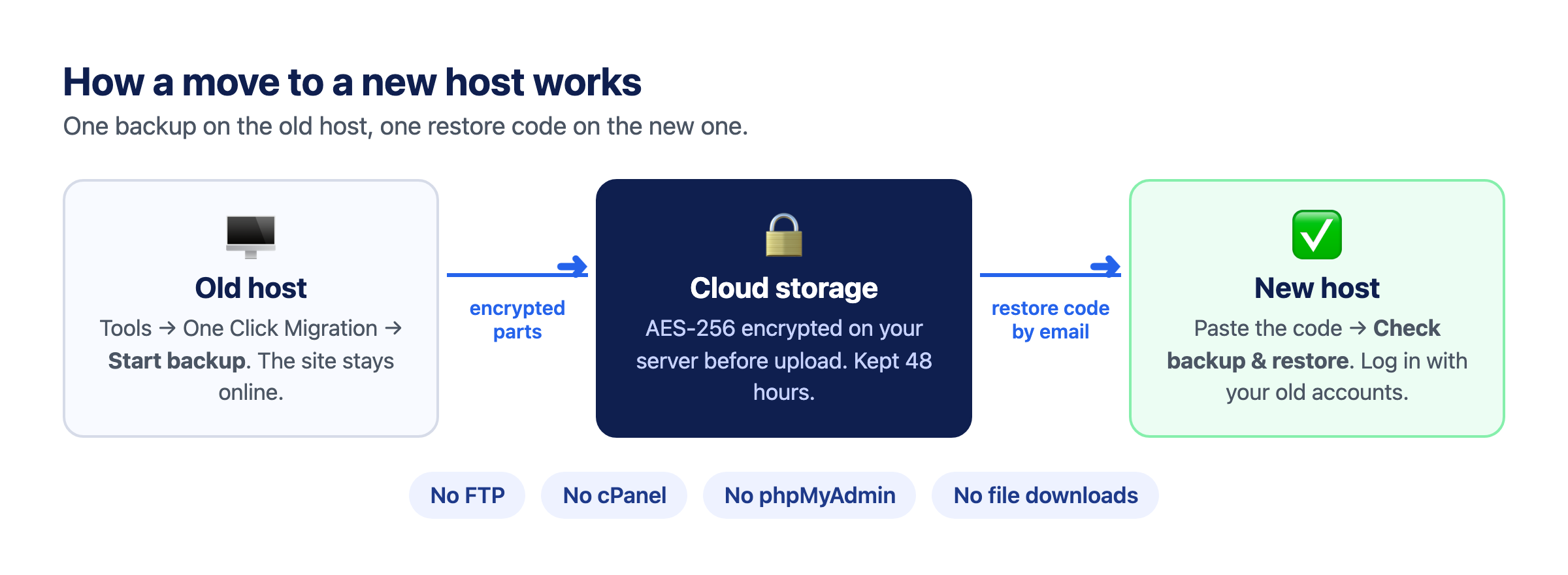
What moves to the new host
- The database: posts, pages, users, menus, settings and plugin data.
- Themes, plugins and uploads, including every image in the media library.
- Usernames and passwords. You log in to the new site with the same accounts.
If the domain changes too, every copy of the old address in the database is updated, serialized data included. See how to change your WordPress domain name.
Before you start
- Check that the new host runs PHP 7.4 or later. 1-Click Migration supports single-site installs, not Multisite.
- Remove themes, plugins and media you don’t need. A smaller site backs up faster.
- Keep your old hosting account until the site works on the new host.
Step 1: Back up the site on your old host
- Install 1-Click Migration on the site you’re moving from.
- Deactivate every other plugin. You’ll turn them back on after the restore.
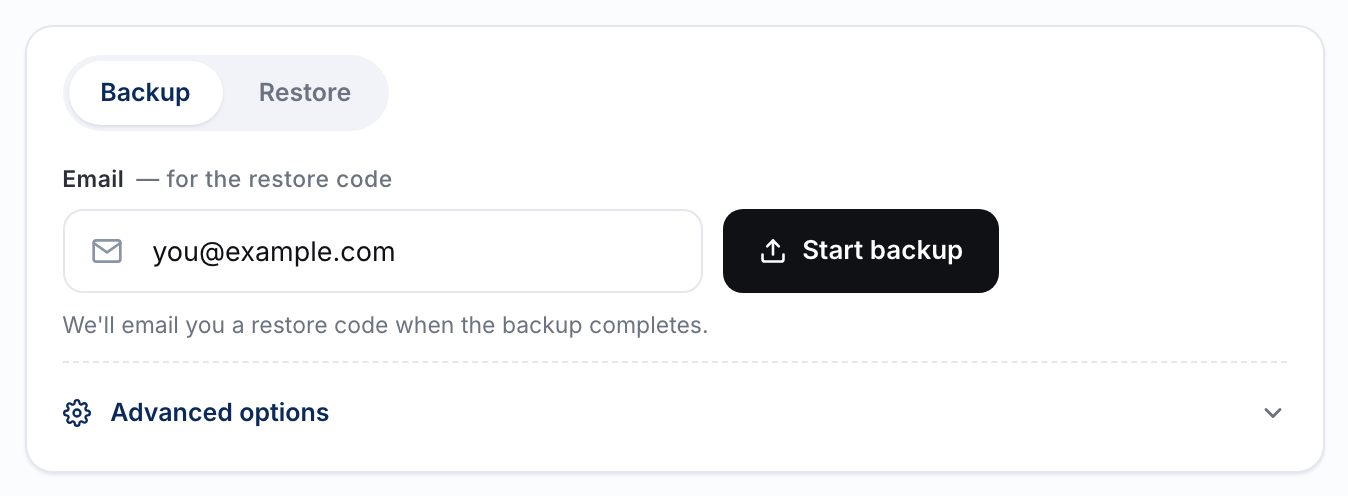
- Go to Tools → One Click Migration, enter your email and click Start backup. Most backups finish in 10–30 minutes, and the site stays online while it runs.
- Keep the email with your 8-character restore code. It’s the only way to restore the backup, and it works for 48 hours.
Step 2: Point your domain at the new host
Update your domain’s DNS records or nameservers as your new host describes, then add WordPress for that domain on the new host. Visitors keep reaching the old site until the DNS change reaches them, so the site doesn’t go dark while you move. Turn on SSL for the domain on the new host if it doesn’t do that by itself.
Step 3: Restore on the new host
- Install WordPress and 1-Click Migration on the new host, and delete any other plugins the host pre-installed.
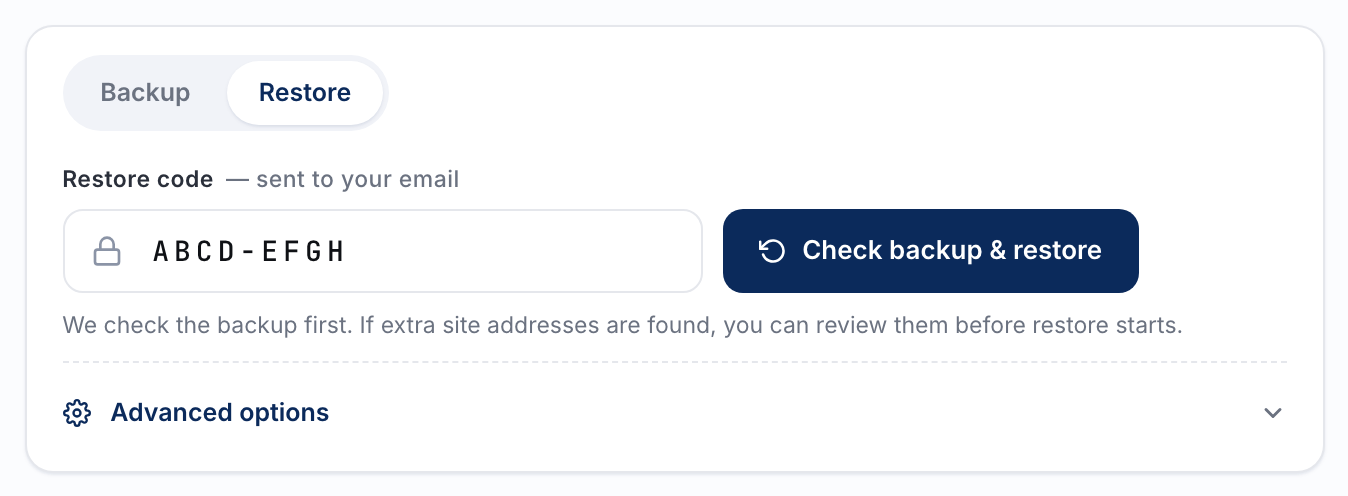
- Go to Tools → One Click Migration, paste the restore code and click Check backup & restore.
- Review any extra site addresses the check found, such as an old domain or a CDN, choose which ones to rewrite, then start the restore. The site shows a maintenance page while it runs.
- Log in with the usernames and passwords from the original site, then reactivate your plugins.
If something goes wrong
- The database is imported into temporary tables and checked before it replaces anything. If a check fails, the restore stops, says why, and leaves the site as it was.
- Free disk space is checked before files are unpacked.
- Backups and restores run in short steps and pick up where they left off, so hosts with strict PHP time limits or blocked background requests are fine.
- If a large site fails in one go, click Stop & Reset and use Advanced options to move one part at a time, with the database last. For memory errors, read WordPress migration plugin memory limit.
Which hosts it works with
Any host that runs WordPress on PHP 7.4 or later, including Bluehost, SiteGround, Hostinger, GoDaddy, HostGator, DreamHost, Namecheap, IONOS, A2 Hosting, InMotion Hosting, GreenGeeks, ScalaHosting, Liquid Web, Cloudways, WP Engine, Flywheel, Kinsta and Pressable, plus cloud servers on DigitalOcean, AWS Lightsail, Vultr and Linode. It works with cPanel, Plesk or no control panel at all.
Related guides
- Change your WordPress domain name
- Migrate past a 512MB upload limit
- Migrate a WooCommerce store
- Move WordPress from localhost or staging to live
- How to migrate a WordPress site: step-by-step backup & restore
Stuck? Ask on the 1-Click Migration support forum. Include your site’s domain, but never your restore code: anyone who has the code can restore your backup.
1-Click Migration is free, with no account or license key. Get it from WordPress.org.