
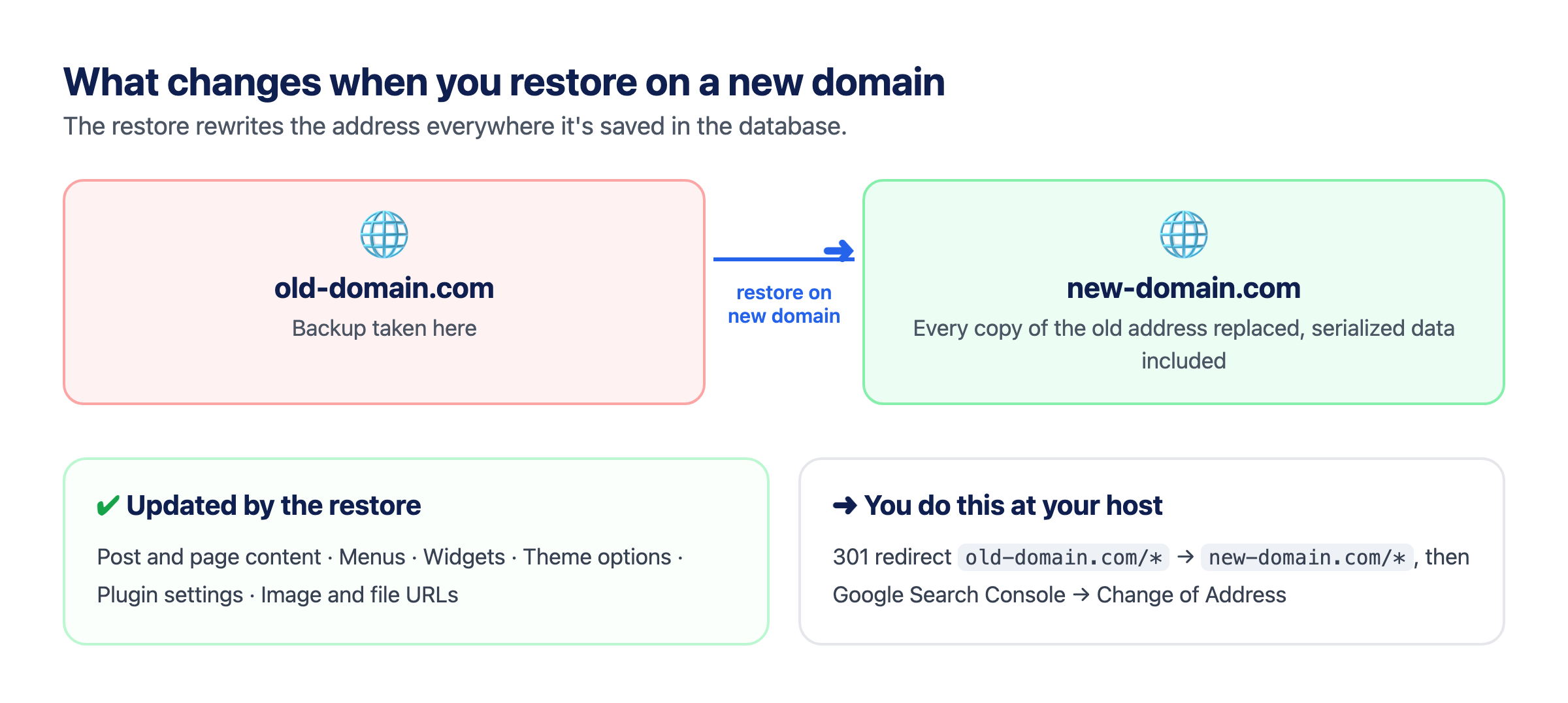
Changing a WordPress domain name takes more than editing the WordPress Address and Site Address in Settings → General. The old address is saved all over the database: in post content, menus, widgets, theme options and plugin settings. Much of it sits inside serialized data, which breaks if a plain search and replace changes its length.
1-Click Migration changes the domain by restoring a backup of the site on the new domain. During the restore, every copy of the old address is replaced, serialized data included.
Step 1: Set up WordPress on the new domain
Point the new domain at your host, install WordPress on it and turn on SSL. The new domain can be on the same host as the old one or on a different host.
Step 2: Back up the site on the old domain
- Install 1-Click Migration on the site you’re moving from.
- Deactivate every other plugin. You’ll turn them back on after the restore.
- Go to Tools → One Click Migration, enter your email and click Start backup. Most backups finish in 10–30 minutes, and the site stays online while it runs.
- Keep the email with your 8-character restore code. It’s the only way to restore the backup, and it works for 48 hours.
Step 3: Restore on the new domain
- Install WordPress and 1-Click Migration on the new domain, and delete any other plugins the host pre-installed.
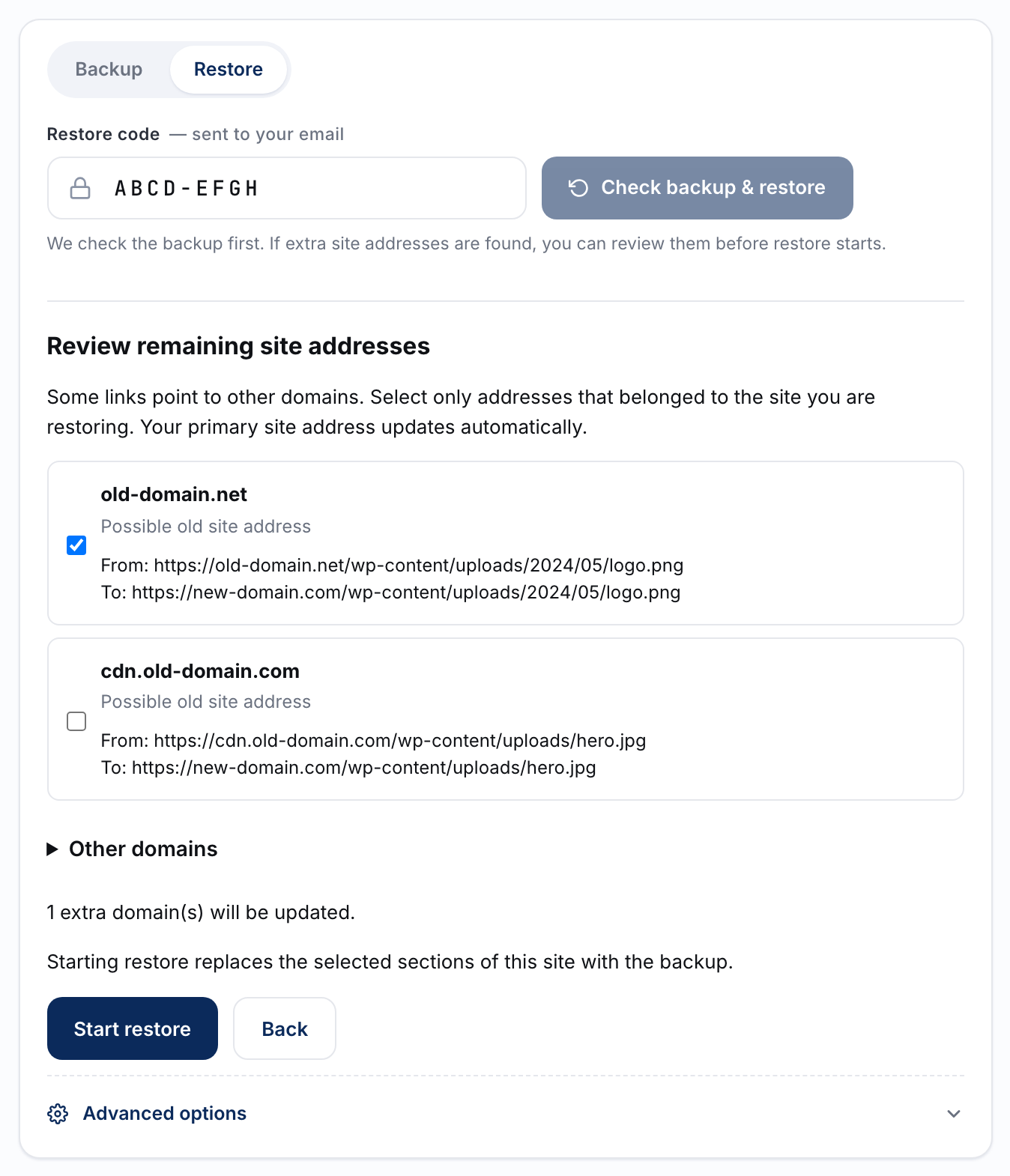
- Go to Tools → One Click Migration, paste the restore code and click Check backup & restore.
- Review any extra site addresses the check found, such as an old domain or a CDN, choose which ones to rewrite, then start the restore. The site shows a maintenance page while it runs.
- Log in with the usernames and passwords from the original site, then reactivate your plugins.
Before the restore starts, the check lists other domains found in the backup, such as an older domain or a CDN. You choose which of those to rewrite to the new domain too. All choices start unchecked.
Step 4: Redirect the old domain
1-Click Migration doesn’t add redirects. Keep the old domain pointing at a server and send every old URL to the same path on the new domain with a 301 redirect, so visitors and search engines follow. On Apache hosts, this goes in the old domain’s .htaccess file:
RewriteEngine On
RewriteCond %{HTTP_HOST} ^(www\.)?old-domain\.com$ [NC]
RewriteRule ^(.*)$ https://new-domain.com/$1 [R=301,L]
Then tell Google with the Change of Address tool in Search Console.
Moving from a subdomain to the main domain
Moving blog.example.com or staging.example.com to example.com works the same way. Install WordPress on the main domain, restore the backup there, and the subdomain address is replaced throughout the database.
Questions
Will links and images work on the new domain?
Yes. Links, image URLs and settings in the database point at the new domain after the restore.
Do I need phpMyAdmin or a search and replace plugin?
No. The address is replaced during the restore.
What isn’t changed?
Addresses written into theme or plugin files rather than the database. If you’ve added custom code that names the old domain, update it by hand.
Related guides
- Migrate WordPress to a new host
- Migrate past a 512MB upload limit
- Migrate a WooCommerce store
- Move WordPress from localhost or staging to live
- How to migrate a WordPress site: step-by-step backup & restore
Stuck? Ask on the 1-Click Migration support forum. Include your site’s domain, but never your restore code: anyone who has the code can restore your backup.
1-Click Migration is free, with no account or license key. Get it from WordPress.org.