
A WooCommerce store is a WordPress site with more at stake. Products, orders, customers and settings live in the database, and product images live in the uploads folder. 1-Click Migration moves all of it with one backup and one restore, with no FTP or phpMyAdmin.
What moves
- Products, variations, categories and stock levels.
- Orders, customers and their accounts, coupons and reviews.
- WooCommerce settings: tax, shipping, emails and payment gateway settings.
- Product images and downloadable product files in the uploads folder.
- Your theme and WooCommerce extensions.
Plan around new orders
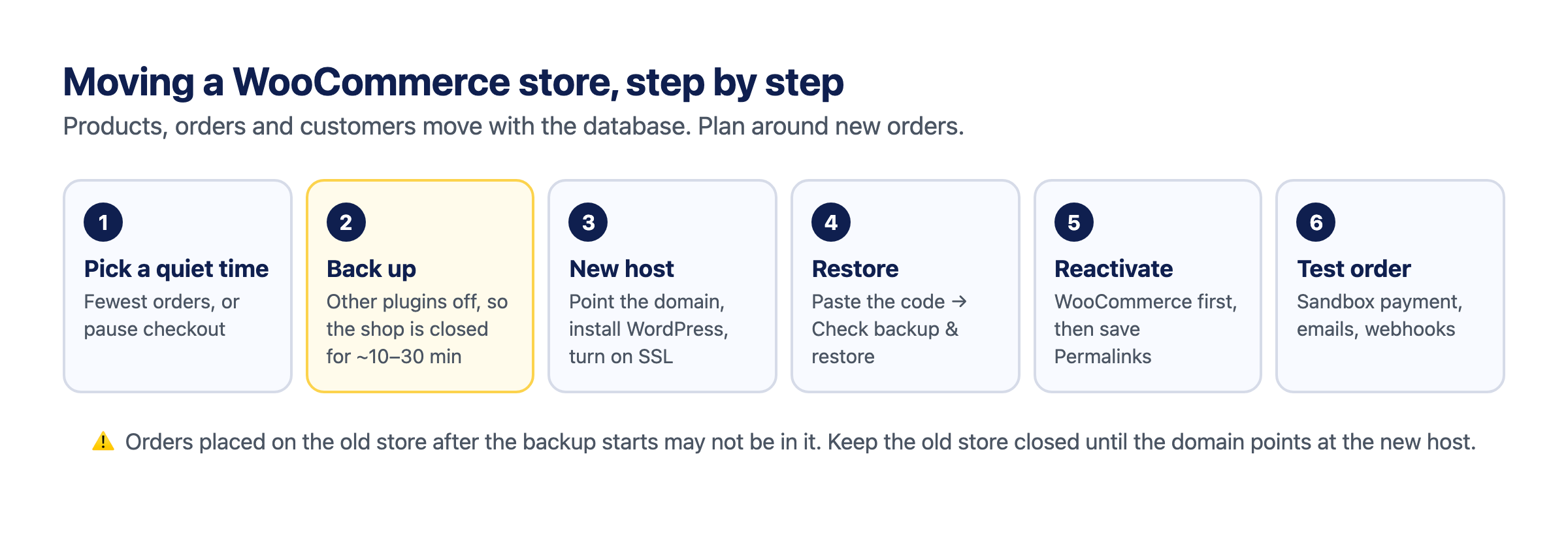
Orders placed on the old store after the backup starts may not be in the backup. Move the store at a quiet time, and keep the old store closed until your domain points at the new host.
The backup steps ask you to deactivate every other plugin, WooCommerce included, so the shop is closed while the backup runs, usually 10–30 minutes. You reactivate WooCommerce on the new site after the restore.
Step 1: Back up the store
- Install 1-Click Migration on the site you’re moving from.
- Deactivate every other plugin. You’ll turn them back on after the restore.
- Go to Tools → One Click Migration, enter your email and click Start backup. Most backups finish in 10–30 minutes, and the site stays online while it runs.
- Keep the email with your 8-character restore code. It’s the only way to restore the backup, and it works for 48 hours.
Step 2: Set up the new host
Point your domain at the new host (or set up the new domain), install WordPress and turn on SSL. A store needs SSL before it takes payments.
Step 3: Restore the store
- Install WordPress and 1-Click Migration on the new host, and delete any other plugins the host pre-installed.
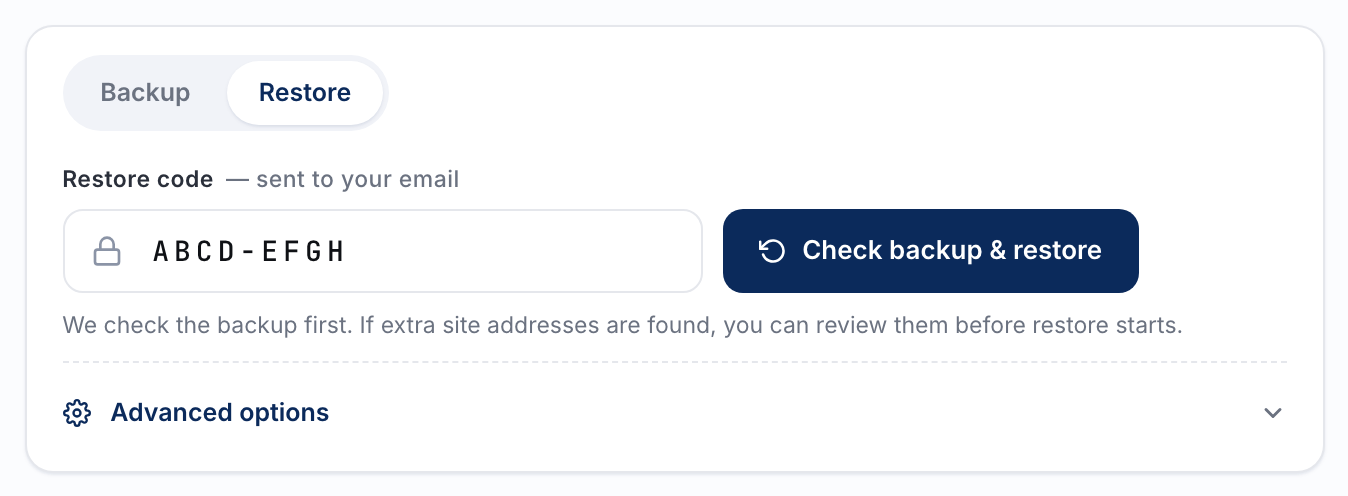
- Go to Tools → One Click Migration, paste the restore code and click Check backup & restore.
- Review any extra site addresses the check found, such as an old domain or a CDN, choose which ones to rewrite, then start the restore. The site shows a maintenance page while it runs.
- Log in with the usernames and passwords from the original site, then reactivate your plugins.
Step 4: Check the store before you open it
- Reactivate WooCommerce first, then your other plugins.
- Go to Settings → Permalinks and click Save Changes so product and cart links work.
- Put your payment gateway in test or sandbox mode and place a test order. Check that the order emails arrive.
- If the domain changed, update webhook and return URLs in your payment provider’s dashboard, such as Stripe or PayPal, because those are set on the provider’s side.
- Clear any cache or CDN in front of the store.
Large stores
Stores with many product images can be large. There’s no 4GB zip cap and no upload limit, see migrating past an upload limit. If a store fails to move in one go, click Stop & Reset and use Advanced options to move one part at a time, with the database last.
Questions
Do customers need to reset their passwords?
No. Customer accounts and passwords move with the database.
Does it work if the domain changes too?
Yes. Product links and image URLs in the database are rewritten to the new domain during the restore. See how to change your WordPress domain name.
Related guides
- Migrate WordPress to a new host
- Change your WordPress domain name
- Migrate past a 512MB upload limit
- Move WordPress from localhost or staging to live
- How to migrate a WordPress site: step-by-step backup & restore
Stuck? Ask on the 1-Click Migration support forum. Include your site’s domain, but never your restore code: anyone who has the code can restore your backup.
1-Click Migration is free, with no account or license key. Get it from WordPress.org.